Account settings
The Account settings page (/account) manages your profile, password, email
notifications, and connected sign-in methods. Reach it from the user menu in the
app header. Every section is a self-contained card; changes in one card don't
affect the others.
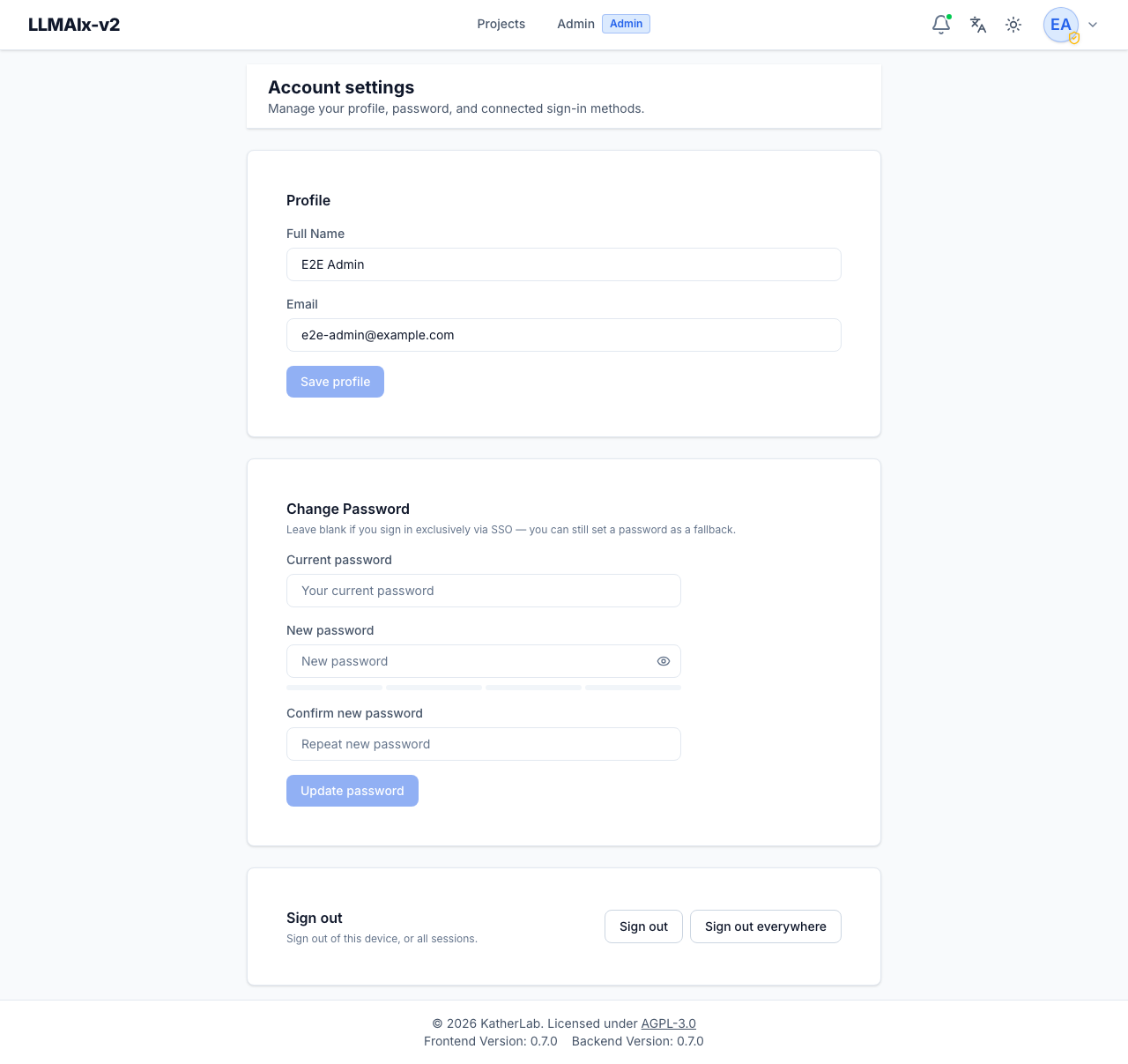
Profile
Edit your Full Name. Save profile is enabled only when the name differs from what's currently stored on your account and isn't empty. After a successful save a short "Saved" confirmation appears next to the button and the header/menu update to reflect the new name.
Your Email is shown but cannot be edited here.
Email is your login identity
Your email is also your sign-in username — and, when SSO links accounts by email, it decides which account an external identity attaches to. Changing it is therefore an administrator action: ask an admin to change it from User management. The server enforces this, not just the greyed-out field.
Change password
Enter your current password, then a new password and confirmation. The Update password button is enabled only when all of the following are true:
- the current password field is filled in,
- the new password is at least the minimum length (8 characters), and
- the confirmation matches the new password exactly.
The new-password field shows a strength meter as you type. If the confirmation doesn't match, an inline error is shown and the button stays disabled. The current-password field is required so that someone with temporary access to an open session can't silently change your password.
Signing out other sessions
Changing your password signs you out of your other sessions. If you sign in exclusively via SSO you can leave this blank — but you may still set a password as a fallback way to log in.
Password policy
The minimum length shown here is the floor. A deployment may enforce
stronger complexity rules (uppercase, digits, symbols) via the
PASSWORD_POLICY_* settings; the server rejects passwords that fail those
rules and the reason is shown inline.
Email notifications
Choose which emails the instance sends you. Each toggle saves immediately — there is no Save button for this card. If your deployment has no SMTP server configured, a banner says so and none of the toggles will have any effect until an administrator sets one up (see System settings).
| Category | Sent when |
|---|---|
| Job finished | A preprocessing run or extraction run you started completes or fails. Not sent to other members of the project. |
| Project shared with me | Someone gives you access to a project, or changes the access you have. Not sent when access is revoked. |
| Account security | Your password is changed or reset, your account is locked after failed sign-in attempts, or a sign-in method is linked to or removed from your account. |
| Administrator alerts | Admins only: a background task crashed, stuck tasks were reclaimed, or the server hit an unhandled error. |
When to send
Two settings apply to job email only — a security notice or a share grant is always worth an email, even if you are looking at the app.
- Only when I'm away — skip job email while you have LLMAIx Web open in a browser tab. Your open tab sends a heartbeat every 45 seconds; if the browser goes away without closing cleanly (a suspended laptop, a dropped network) you count as present for up to two more minutes, so a job finishing in that window may not email you. This option needs Redis; without it you always count as away.
- Minimum job length — jobs that finish faster than this never email you. Leave it empty to use the server's default (2 minutes unless an administrator changed it).
What the emails contain
Notification email carries counts, timings, the model name, and the labels you chose yourself — the project name and the run name. It never contains document text, extracted values, file names, or per-document error messages; those stay behind the link, which requires you to sign in. Because project and run names do travel by email, avoid putting patient identifiers in them.
Emails are written in the language you last selected with the language switcher.
Connected accounts (SSO)
Shown only when single sign-on is enabled for the deployment. Lists your linked identity providers, one row each, with:
- the provider name (e.g. "Google", "Keycloak"),
- the external account/subject the link points at, and
- the last login timestamp through that provider (when available).
Each row has a Disconnect button that removes that link. Disconnecting only severs the sign-in method — it does not delete your account or any of your data.
If you have no linked providers, the card shows an empty-state message. The whole card is hidden entirely when SSO is disabled system-wide.
You can't lock yourself out
You cannot disconnect your last remaining sign-in method — the app blocks it so you always keep a way in. If SSO is your only sign-in method, set a password first (see Change password) before disconnecting the provider.
Signing out
- Sign out — end the session on this device only. Other devices stay signed in.
- Sign out everywhere — revoke all of your refresh tokens so every session, on every device, is ended. Use this if you suspect a session was compromised or after changing your password on a shared machine.
Both actions perform a server-side sign-out (they revoke the token on the backend, not just clear it locally) and then return you to the login page.