Ground truth
Ground truth is a file of known-correct values used to measure an extraction run's accuracy. You upload it, tell the app how documents are identified, and map each ground-truth column to a schema field. Ground truth is managed inside the Evaluation tab.
Uploading
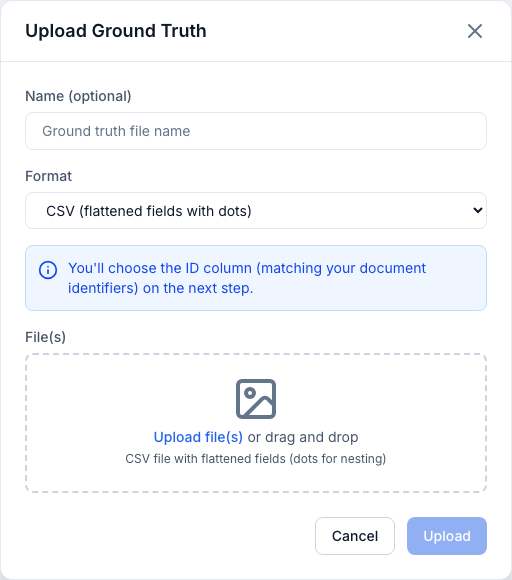
Upload Ground Truth accepts four formats:
- CSV — flattened fields; dot notation (
contact.email) builds nesting. - JSON — a single file with a document map, or multiple files (each document
needs an
idmatching your document identifiers). - ZIP — multiple JSON files (one document per file; a file's
idfield, or its filename stem, becomes the key). - Excel (.xlsx) — dot-paths build nesting; multiple sheets are merged by ID (the same ID across sheets is deep-merged into one record).
Give it an optional name. Dropping a file auto-selects the matching format; dropping several JSON files zips them together automatically. After upload, the app opens the mapping configurator right away.
How documents are matched
Ground-truth entries are matched to extraction results by identifier. For
JSON/ZIP each entry needs an id; for CSV/XLSX you choose the ID column
in the next step. Matching is case-insensitive and tries, in order: the
document name (with and without file extension), the source filename (with
and without extension and folder path), and finally the document's numeric
ID (also as doc_<id> / document_<id>).
IDs must be unique and present
Every CSV/Excel row that carries data must have a value in the ID column, and
IDs must be unique within a table. Rows with data but no ID, or duplicate
IDs, cause the upload to fail with an explicit error rather than silently
dropping or overwriting rows. Fully empty rows are ignored. Numeric IDs are
normalized (e.g. 123.0 → 123) so they line up with document names.
Selecting the ID field
In the mapping dialog:
- CSV/XLSX — pick the Document ID column (required; it must match your document identifiers). Choosing a column that doesn't exist in the file is rejected loudly; the app never silently falls back to row numbers.
- JSON/ZIP — use the document filename, or a field from the data.
Changing the ID field invalidates evaluations
Changing the ID column clears cached data and invalidates existing evaluations that used this ground truth, so they are recomputed with the new key.
Mapping fields
The full-screen Configure Ground Truth Mapping dialog has three columns:
- Left — Schema fields — pick the schema; its fields show as a tree with type badges. Required, unmapped leaves are flagged; mapped leaves get a check.
- Center — Mappings — create each mapping (schema field → ground-truth field). Auto-map matching names maps fields whose normalized names match. Clear all mappings resets them.
- Right — Ground-truth fields — the parsed columns/fields plus a live data Ground Truth Sample so you can eyeball the real values as you map.
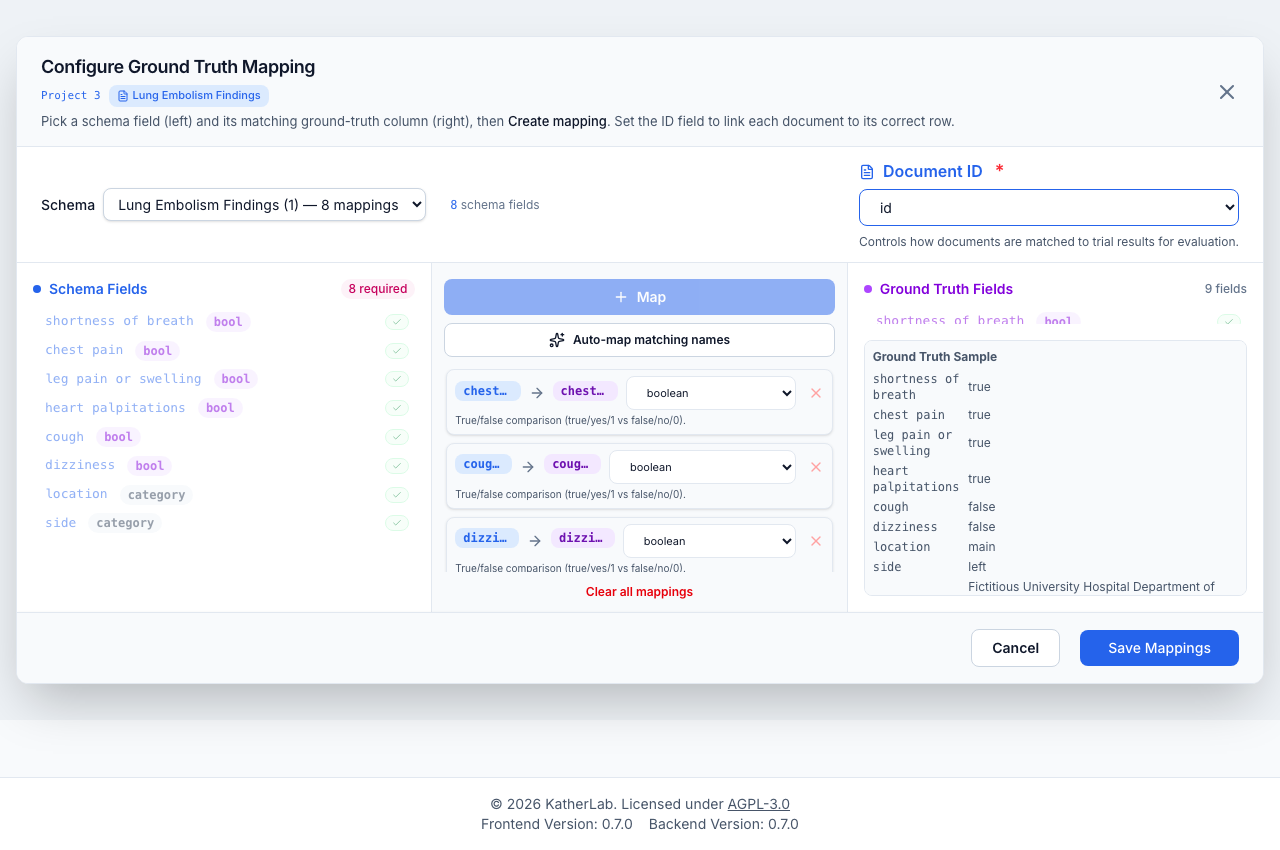
Each mapping row shows the schema field (with type), an arrow, the ground-truth field (with type), a comparison-method dropdown, an options button for methods that have tunable settings, and a remove button. Saving persists the ID column (if changed) and the mappings. You can't save until a schema is chosen, at least one mapping exists, and the ID field is set.
Editing mappings invalidates evaluations
Saving new mappings deletes evaluations for extraction runs using that schema, so they can be recomputed against the new mapping.
Comparison methods
Each mapping has a comparison method, defaulted from the field type. A short description of the selected method is shown under each row. Pick the one that fits the field:
| Method | Correct when… | Tunable options |
|---|---|---|
| exact | strings are equal, ignoring case and surrounding whitespace | (none in the mapping row) |
| fuzzy | similarity ≥ a threshold | threshold (default 85; higher is stricter), allow partial match |
| numeric | values within a tolerance | tolerance (default 0.001), relative toggle |
| boolean | both parse to the same true/false | (none) |
| category | category labels match | (synonym mappings, applied by the engine) |
| date | calendar dates are equal | (none) |
Only fuzzy and numeric expose an inline options panel (the sliders icon); the other methods have no per-row settings.
How each method scores a value:
- exact — compares the two values as strings after trimming and (by default) lower-casing. Use it for IDs, codes, and enum-like labels.
- fuzzy — the score is
max(ratio, token_sort_ratio), so it tolerates typos and reordered words ("chest pain" vs "pain chest") without rewarding a bare substring. Enabling allow partial match additionally considerspartial_ratio. - numeric — parses both sides as numbers. With relative off, it passes
when the absolute difference is within tolerance; with relative on, it
passes when the difference as a fraction of the expected value is within
tolerance (so
0.05≈ 5%). A value that isn't numeric is a type error. - boolean — recognizes
true/yes/1/y/t/onandfalse/no/0/n/f/off(case-insensitive). A token it can't recognize (e.g. "maybe") is a type error, not a silentfalse— so genuine ambiguity is surfaced. - category — matches labels case-insensitively, optionally via synonym mappings, and builds a confusion matrix for the field (see evaluation).
- date — parses many common formats (
YYYY-MM-DD,DD/MM/YYYY,MM/DD/YYYY,DD.MM.YYYY, …, with a pandas fallback) and compares the resulting calendar dates.
Arrays are compared order-independently (set semantics): every expected element must be matched by a distinct predicted element with no extras, and each element is scored with the row's comparison method (so numeric tolerance / fuzzy thresholds still apply per item). Both a missing expected element and an extra predicted element make the field wrong.
Fuzzy substring matching is off by default
Substring matching is opt-in because it can invert meaning in medical text (e.g. "cancer" matching "non-cancer"). Enable it only when you're sure.
The dialog also shows amber hints when a comparison method is unusual for a field's type, or when the schema and ground-truth types don't line up.
Managing ground-truth files
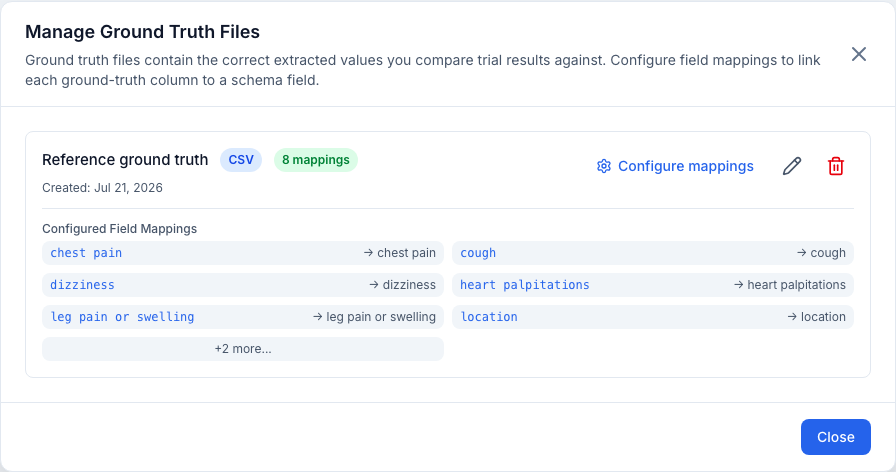
The Manage Ground Truth Files view lists each file with its format, mapping count, and a preview of its mappings. You can Configure mappings, Rename, or Delete.
Danger
Deleting a ground-truth file also deletes all evaluations that used it.
Next step
With mappings configured, create an evaluation.