Documents
Documents are the text outputs of preprocessing — the content that gets sent to the LLM. This tab is for browsing, organizing, and reprocessing them; you don't upload here.
The tab has two sub-tabs: All Documents and Document Groups.
Finding documents
The filter bar sits above the table and combines a search box, inline filter dropdowns, and a row of removable filter chips summarizing what's currently applied.
- Search — matches document text, document name, and the original filename together. The count next to the bar reflects the filtered total.
- OCR Engine — All OCR Engines (default), Embedded Text (pypdf), Local OCR (Tesseract), Mistral OCR, Vision LLM. Changing it refetches immediately.
- Date Range — All time (default), Today, Yesterday, This Week, This Month, or Custom. Picking Custom reveals From / To date inputs and an Apply button — the custom range is only fetched when you click Apply (not on every keystroke), since a range means touching both fields.
- Include archived versions — also show non-latest document versions (their history). While on, a showing history hint appears next to the label.
Each active filter also appears as a coloured chip (search, OCR engine, date, archived). Click a chip to clear just that filter, or use Clear all to reset every filter at once.
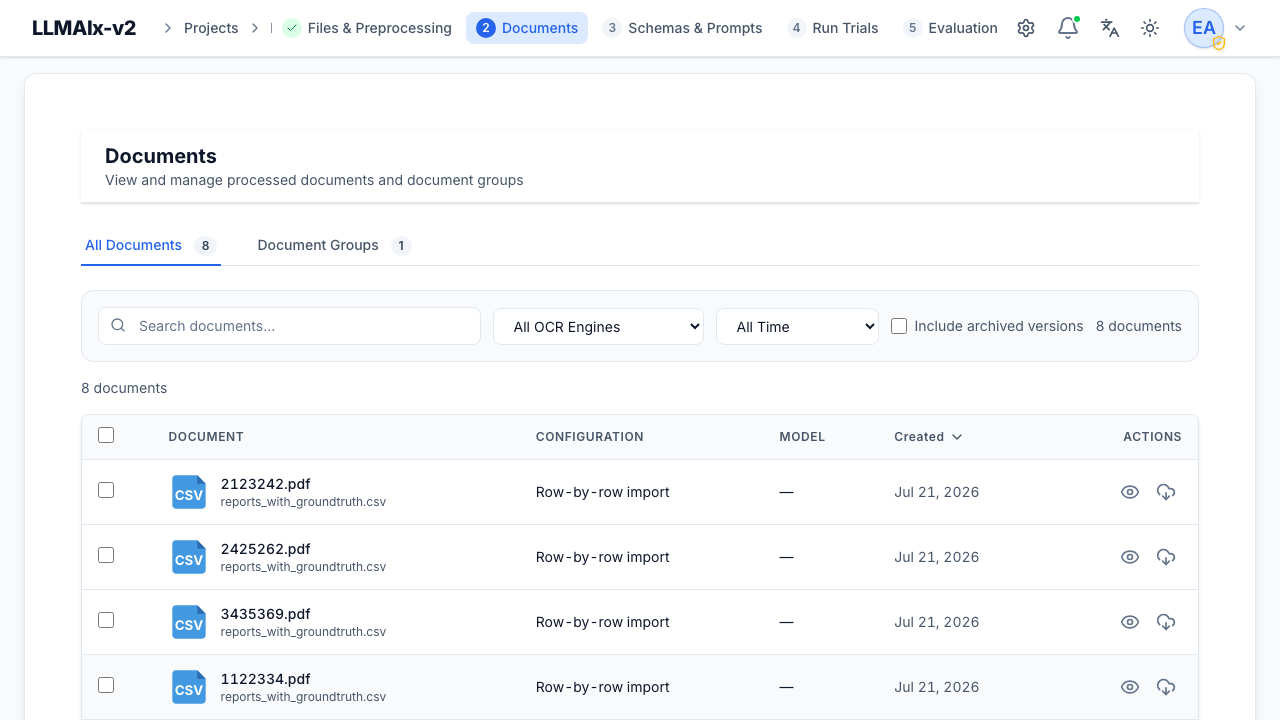
The documents table
Columns:
- Document — a file-type icon plus the document name (falls back to the
original filename, then to Document #
). A sub-line shows the original filename when it differs from the document name, otherwise the file size. - Configuration — the preprocessing config name (or Custom configuration), with an OCR-method sub-line. The sub-line is shown only when OCR was actually applied — embedded-text extraction, plain-text files, and CSV/XLSX imports show nothing here.
- Model — the OCR/vision model recorded in the document metadata
(
mistral_model,vision_model, or a genericmodel), or—for local OCR where no model applies. - Created — the only sortable column (the list endpoint orders solely by creation time; click the header to toggle ascending/descending).
Each row has View (eye) and Download (cloud) actions. Select documents with the checkboxes; the header's Select all documents extends the selection to every match across all pages (a brief busy state runs while the full id list is fetched). The page-size selector and pager sit at the bottom of the table.
Batch actions
Selecting one or more documents opens the batch-actions modal for the chosen verb. Every batch action shows the selection count in its header, and long- running batches show a live "X of Y" progress counter in the footer (the modal cannot be dismissed while a delete is in flight).
- Create Group — bundle the selection into a document group.
- Reprocess — re-run preprocessing. An optional Force reprocess (ignore existing results) checkbox forces a fresh run even where results already exist.
- Delete — remove documents (with an optional cascade; see below).
- Export — coming soon. The control accepts a format (JSON, CSV, TXT, PDF) and include metadata / include preprocessing info toggles, but the export itself is not yet implemented and currently only shows a notice.
Reprocess works on whole files, not rows
Reprocessing runs on the source file, not individual rows. Each selected
document is resolved back to its original_file_id (deduplicated — a
row-by-row CSV/XLSX shares one file), so selecting a few rows reprocesses the
entire file (all rows). The original preprocessing configuration is
reused, so the rerun keeps the same OCR engine and settings rather than
silently falling back to defaults. Mixed selections are grouped by
configuration into separate reprocessing tasks — one task per config.
Delete cascade
Deleting a document that's referenced by an extraction run, group, or evaluation requires confirming a cascade that also removes those dependents. When you tick the cascade option the dialog fetches and previews the exact impact (e.g. "3 documents, 2 extraction runs, 1 group, 5 extraction results"). You must also tick "I understand that this action is permanent." before the delete button enables. Very large selections (over ~1,000 ids) skip the preview and say so; deletions are sent to the backend in chunks and a per-item summary of any failures is surfaced afterwards.
Combining documents (multi-document extraction)
Some workflows need one extraction over several documents of the same
patient — e.g. a referral letter, a pathology report, and a discharge summary
that together answer the schema. Combine documents merges each group into a
single combined document whose text is the concatenation of its sources, each
section prefixed with a --- Document: <name> --- delimiter. Combined documents
then flow through the rest of the pipeline unchanged: an extraction run
produces one result per combined document, and evaluation matches ground
truth against the combined document's name.
Open the dialog with Combine documents above the table (or select rows first and use Combine in the selection toolbar). Three grouping modes:
- By case ID — groups documents by the case ID recorded during row-by-row import. Documents without a case ID are skipped.
- By name pattern — a regular expression applied to each document's name
(falling back to the original filename); the first capture group becomes
the combined document's name. For example,
^(.+?)[_-]groupsP001_visit1.pdfandP001_visit2.pdfunderP001. - From selection — merges the documents you selected in the table into one combined document with a name you type.
The dialog previews the resulting groups (name, member count, source names) before anything is created. By default only groups with at least two documents are created, and the combined documents are also collected into a document group so they can be picked as a set when creating an extraction run.
Details worth knowing:
- The combined document's name is the group key (typically the patient or case ID) — name your ground-truth rows the same way and evaluation matches per patient automatically.
- Sources are merged oldest first, so the combined text reads chronologically.
- Combining again under the same name replaces the previous combined document (it's kept as an archived version, like reprocessing does).
- Combined documents have no backing file: the viewer shows text only (with the source list in the info sidebar), and they are skipped by reprocessing. If you reprocess or delete a source document, the combined document keeps its existing text — re-combine to refresh it.
- Combined documents can't be used as sources for another combination.
The document viewer
View opens a slide-over. Its header shows the document name (with the original filename beneath when they differ) and an extraction-method badge (Text Extraction, Local OCR, Force OCR, Mistral OCR, Vision LLM) indicating how the text was produced.
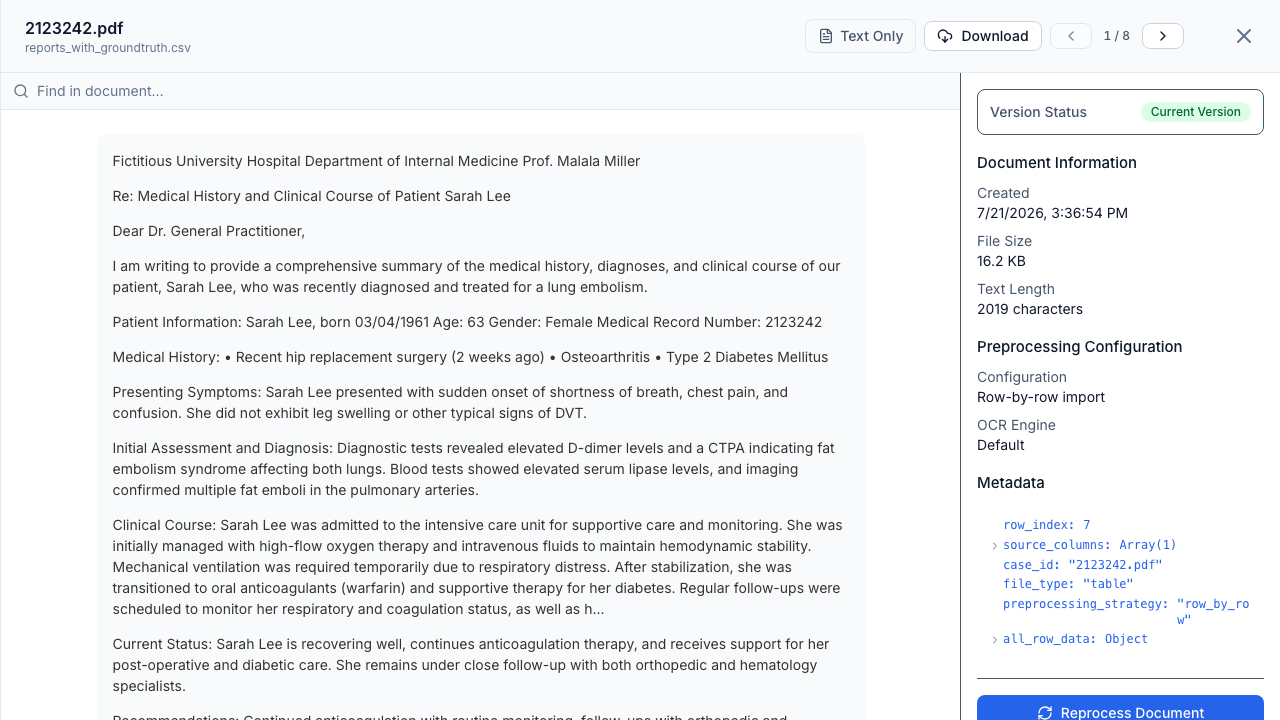
Depending on the source, a segmented control lets you switch view mode:
- Text — the extracted text, rendered as Markdown, with a find-in-document bar (Enter = next match, Shift+Enter = previous, Esc = clear).
- File — the original PDF or image preview.
- Both — original and text side by side (the default when a displayable original file exists).
Documents whose text is the content — plain-text (text/plain) files and
row-by-row spreadsheet rows — have no separate original to show, so instead of
the segmented control the header shows a Text Only pill.
Additional header controls:
- Download — downloads the currently viewed document.
- History — appears only when the document has version history; the button carries a badge with the version count (see below).
- Navigation — when the viewer is opened from a list, header ‹ / › arrows and a 1 / N pager move through the whole corpus. The ← / → keys do the same (ignored while focus is in a text field so you can still type).
The info sidebar
The right-hand sidebar summarizes the current document (or the selected version):
- Version Status — a Current Version / Archived Version pill.
- Document Information — created date, original file size, and the text length in characters (plus an archived timestamp for non-current versions).
- Preprocessing Configuration — the config name (or Custom), the OCR engine, and the model where one applies.
- Metadata — the raw document metadata rendered as an interactive JSON tree.
- Actions — Reprocess Document, plus Restore This Version when an archived version is selected.
Version history
If a document was reprocessed, the History button opens the version
sidebar. Each version is labelled v1, v2, … and marked Current or
Archived. Click a version to view its text and metadata in place;
Restore This Version makes an archived version current again.
Restore never reprocesses
Restoring copies the archived version's exact text into a new latest version — nothing is re-OCR'd or re-extracted.
Document groups
A document group (a document set in the API) is a named set of documents you can start an extraction run against. Groups can be:
- Manual — created via Create Group (from the batch bar or the Groups tab).
- Auto-generated — created during preprocessing (e.g. one group per row-by-row spreadsheet import, so all rows from one file stay together), marked with an Auto badge.
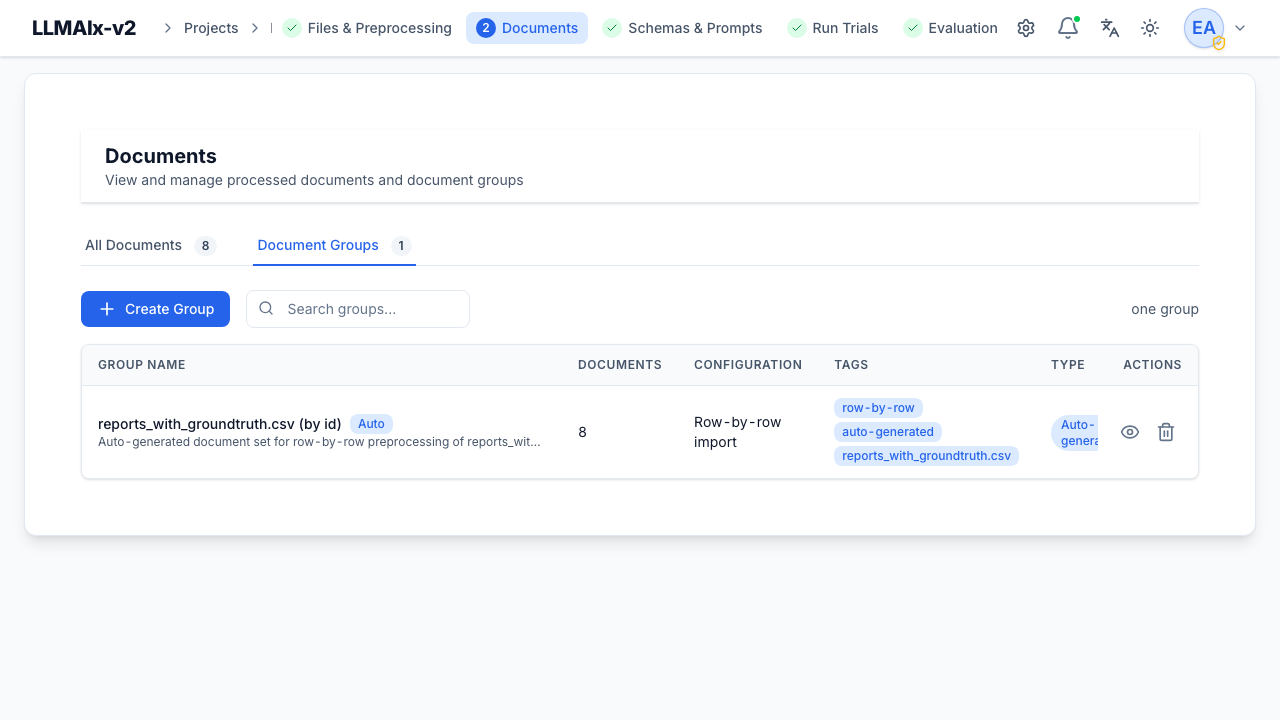
The Groups sub-tab has its own Create Group button and a search box (which searches server-side, debounced). The table shows:
- Name — with the Auto badge on auto-generated groups and an optional description sub-line.
- Documents — the group's document count.
- Configuration — the shared preprocessing config, or Mixed when the members span multiple configs.
- Tags — up to five tag chips, with a +N overflow chip beyond that.
- Type — an Auto or Manual pill.
- Created — creation date.
Row actions are View, Edit (manual groups only — auto groups have no edit action), and Delete.
Groups in use can't be deleted
A group referenced by an extraction run cannot be deleted — its delete action is disabled with an explanatory tooltip. When you do delete a deletable group, the confirmation offers an also delete its documents checkbox; ticking it removes member documents too, but only where they aren't referenced elsewhere (documents still in use are kept, and you're told when that happens).
Next step
Define what to extract in Schemas & prompts.